Use it in
Charts in Slack.
Post an image block from a bot or a workflow and the chart shows in the channel, no attachment upload needed.
# opsToday
Ops bot 09:00
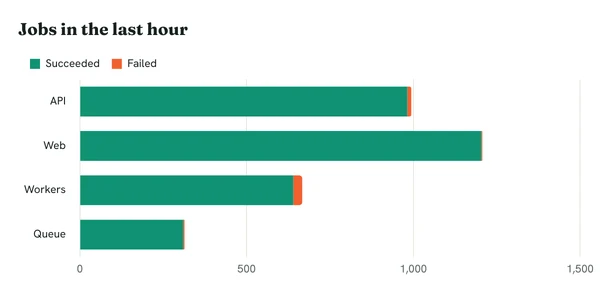
Jobs in the last hour. Workers failed 27.
Set it up.

Write the URL
Start from the Slack status example: two series, stacked, h=300 so it fits the preview.
Post an image block
Put the URL in image_url with alt text.
Schedule it
Send it from your bot every hour. Each new hour is one render.
{
"blocks": [{
"type": "image",
"image_url": "https://c.renderchart.com/?key=rc_pub_live_7Hq2mX9pLk4vN8sT1wEa&type=hbar &x=API,Web,Workers,Queue &y1=982,1204,640,310 &y2=12,3,27,4 &n1=Succeeded &n2=Failed &stacked=1 &title=Jobs%20in%20the%20last%20hour &h=300 ",
"alt_text": "Slack status chart"
}]
} Worth knowing.
- Hide the key
- Short URLs (/s/) hide your key and data, on Starter and above.
- Live charts
- On Pro, a live short URL shows new data within about five minutes, so a pinned message stays current.