BlogGoogle Sheets
Chart a column of numbers with =IMAGE()
TEXTJOIN turns a column into the comma list a chart URL needs, so the chart in the cell follows your data. No add-on, no Apps Script.
What you’ll build
Figure 1
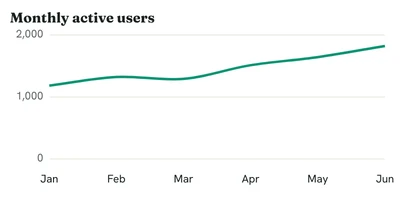
Monthly active users from a two-column range, drawn at 400 x 200 to sit beside the numbers.
Column A holds the months and column B the numbers. The chart sits in a merged block of cells next to them and redraws when a number changes.
Size it for the cell
A cell is small, so start from a compact size: w=400&h=200. Chart labels stay at 11px whatever the size, so they still read at this width. If you merge a bigger block of cells, raise w and h to match its shape.
smooth=1 curves the line, which suits a short trend. Leave title short or drop it; the sheet usually says what the column is already.
Build the URL from cells
A chart URL wants its labels and values as comma-separated lists. TEXTJOIN does exactly that with a range:
=TEXTJOIN(",", TRUE, B2:B7)
TRUE skips empty cells, so a half-filled month doesn’t leave a gap in the list. Joining the endpoint, your key and the two lists gives the full URL:
="https://c.renderchart.com/?key=KEY&type=line&w=400&h=200&smooth=1"
  & "&x=" & ENCODEURL(TEXTJOIN(",", TRUE, A2:A7))
  & "&y=" & TEXTJOIN(",", TRUE, B2:B7)
Put that in a spare cell first. You’ll see the URL itself, which you can paste into a browser to check the chart.
Wrap it in IMAGE
When the URL looks right, wrap the same expression in IMAGE():
=IMAGE("https://c.renderchart.com/?key=KEY&type=line&w=400&h=200&smooth=1"
  & "&x=" & ENCODEURL(TEXTJOIN(",", TRUE, A2:A7))
  & "&y=" & TEXTJOIN(",", TRUE, B2:B7))
The cell now shows the PNG. Change a number in column B and the formula writes a new URL, so the cell shows the new chart.
Labels with spaces need encoding. If your months are written out in full, wrap the label list in ENCODEURL: "&x=" & ENCODEURL(TEXTJOIN(",", TRUE, A2:A7)).
Keep your key out of shared sheets
Anyone who can see the formula can see your public key. That’s safe: a public key can’t read your charts or change your account. The worst anyone can do with it is make watermarked charts on your allowance. A sheet can’t sign URLs, so give it its own key and leave “Accept signed URLs only” off for that one, while your other keys accept signed URLs only. A short URL would hide the key, but it holds saved data, so it can’t follow your cells.
What it costs
Each new set of numbers is one render. Opening the sheet again, scrolling past the chart or sharing the sheet with the whole team comes from cache and never counts, so a sheet that changes once a day uses about thirty renders a month.

Cell shows nothing?
Paste the URL from your spare cell into a browser. An error image tells you what’s wrong, such as Invalid chart URL when a value isn’t a plain number. Every error image