BlogSlack
Post an hourly jobs chart to Slack from a cron job
Two stacked series, an image block and a schedule. Failures sit on top where people see them, and the channel gets a chart every hour without uploading a file.
What you’ll build
Figure 1
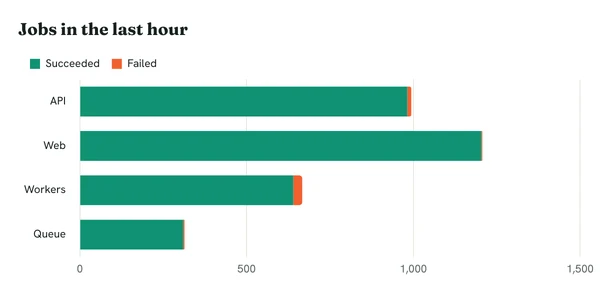
Jobs in the last hour by service, succeeded and failed stacked. h=300 keeps it inside Slack's preview without a click.
Two series, stacked
Each service is a bar. y1 holds the jobs that succeeded and y2 the ones that failed, in the same order as the labels in x. n1 and n2 name the series for the legend, and stacked=1 puts failures on the end of each bar.
hbar draws the bars across, which leaves room for longer service names. The legend appears on its own once there are two series.
Post an image block
Slack shows an image block from its URL, so there is nothing to upload. Slack fetches the chart once and shows it in the channel.
{
"blocks": [{
"type": "image",
"image_url": "https://c.renderchart.com/?key=rc_pub_live_7Hq2mX9pLk4vN8sT1wEa&type=hbar &x=API,Web,Workers,Queue &y1=982,1204,640,310 &y2=12,3,27,4 &n1=Succeeded &n2=Failed &stacked=1 &title=Jobs%20in%20the%20last%20hour &h=300 ",
"alt_text": "Jobs in the last hour by service"
}]
} Schedule it
A small script builds the URL from your job counts and posts it to an incoming webhook. Here it is in shell; the counts come from wherever your job runner keeps them.
#!/bin/sh
# Every hour: post the last hour's jobs to #ops
OK="982,1204,640,310"     # succeeded per service
FAILED="12,3,27,4"        # failed per service

URL="https://c.renderchart.com/?key=$RENDERCHART_KEY&type=hbar&x=API,Web,Workers,Queue&y1=$OK&y2=$FAILED&n1=Succeeded&n2=Failed&stacked=1&title=Jobs%20in%20the%20last%20hour&h=300"

curl -s -X POST -H 'Content-Type: application/json' \
  --data "{\"blocks\":[{\"type\":\"image\",\"image_url\":\"$URL\",\"alt_text\":\"Jobs in the last hour by service\"}]}" \
  "$SLACK_WEBHOOK_URL"
Then run it on the hour from cron:
0 * * * * /usr/local/bin/post-jobs-chart.sh
What it costs
Each hour’s numbers are a new chart, so the job uses one render an hour, about 730 a month. Starter’s 10,000 renders a month covers that many times over. Everyone in the channel opening the image, and Slack showing it again later, comes from cache.
Hide the key
The URL in the message includes your public key. That’s safe: a public key can’t read your charts or change your account, and you can set it to accept signed URLs only so nobody can make charts with it. To keep the key and the numbers out of the channel altogether, create a short URL through the REST API on Starter and above and post that instead.

Image not showing?
Open the URL in a browser first. If a parameter is wrong you’ll see an error image that says what’s wrong. Error images are always 600 x 400. Every error image